




Tink Link iOS
Prerequisites
- Follow the getting started guide to retrieve your
client_id. - Add a deep link to your app with scheme and host (
yourapp://host) to the list of redirect URIs under your app's settings.
Requirements
- iOS 11.0
- Xcode 11.4
Installation
There are two targets in the package Tink Link.
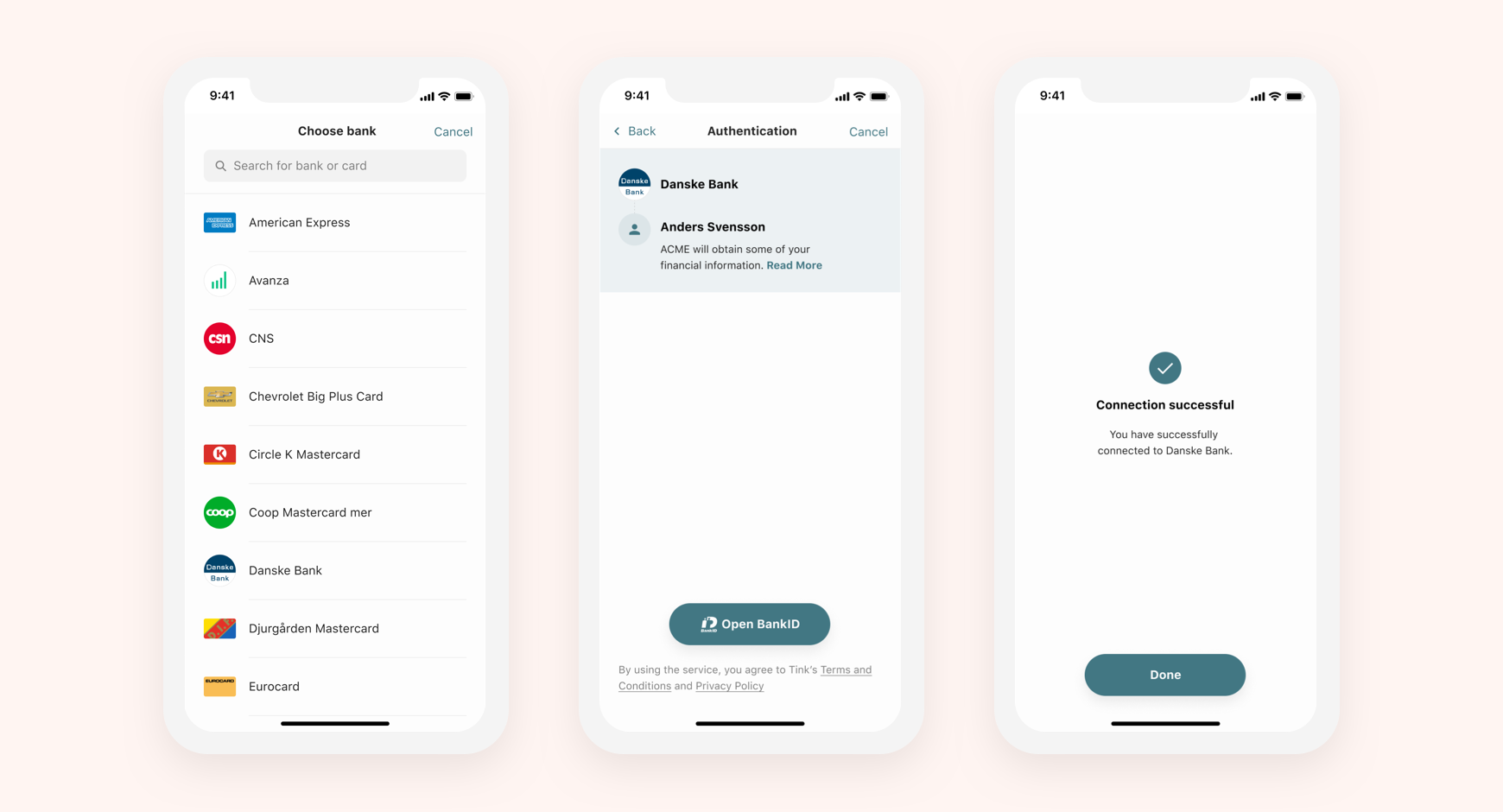
TinkLinkis a framework for aggregating bank credentials, you can build your own UI, suitable for enterprise plan customers that are aggregating with permanent users.TinkLinkUIis a framework with a predefined flow, a single entrypoint and configurable UI style, you can use this framework to bootstrap your application fast.
Read more about permanent users here.
Using Swift Package Manager
Follow these instructions to link a target to a package product and enter this URL https://github.com/tink-ab/tink-link-ios when asked for a package repository.
When finished, you should be able to import TinkLink and import TinkLinkUI within your project.
Using CocoaPods
Refer to their guide for usage and installation instructions.
-
Add TinkLink and TinkLinkUI to your Podfile.
pod "TinkLink" pod "TinkLinkUI" -
Run
pod installin your project directory. -
Open your
.xcworkspacefile to see the project in Xcode.
Manual installation
- Download and unzip the
TinkCore.xcframework.zipfrom the latest Tink Core release. - Drag the
TinkCore.xcframeworkinto the Frameworks, Libraries, and Embedded Content section on your application targets’ General tab. - Download and unzip the
Source code.zipfrom the latest Tink Link release. - Add a new iOS Framework target with the name
TinkLinkto your app. - Drag all files except Info.plist from
Sources/TinkLinkfolder into the new target. - Add a new iOS Framework target with the name
TinkLinkUIto your app. - Drag all files except Info.plist from
Sources/TinkLinkUIfolder into the new target. - Install Down
- Add Down to the TinkLinkUI target.
When finished, you should be able to import TinkLink and import TinkLinkUI within your project.
How to display Tink Link
-
Import the SDK and set up a configuration with your client ID and redirect URI.
import TinkLink
import TinkLinkUI

let configuration = TinkLinkConfiguration(clientID: <#String#>, appURI: <#URL#>)
-
Define the list of scopes based on the type of data you want to fetch. For example, to retrieve accounts and transactions, define these scopes:
let scopes: [Scope] = [
    .accounts(.read),
    .transactions(.read)
]
-
Create a
TinkLinkViewControllerwith your configuration, market, and list of scopes to use.let tinkLinkViewController = TinkLinkViewController(configuration: configuration, market: "SE", scopes: scopes) { result in // Handle result }
-
Tink Link is designed to be presented modally. Present the view controller by calling
present(_:animated:)on the presenting view controller.present(tinkLinkViewController, animated: true)
-
After the user has completed or cancelled the aggregation flow, the completion handler will be called with a result. A successful authentication will return a result that contains an authorization code that you can exchange for an access token. If something went wrong the result will contain an error.
do {
    let authorizationCode = try result.get()
    // Exchange the authorization code for a access token.
} catch {
    // Handle any errors
}
Redirect handling
You will need to add a custom URL scheme or support universal links to handle redirects from a third party authentication flow back into your app.
Follow the instructions in one of these links to learn how to set this up:
Samples
This example shows how to build a complete aggregation flow using TinkLink.
Documentation
For more detailed usage and full documentation, please refer to our Tink Link for iOS guide.
Tink
Tink was founded in 2012 with the aim of changing the banking industry for the better. We have built Europe’s most robust open banking platform – with the broadest, deepest connectivity and powerful services that create value out of the financial data.